
























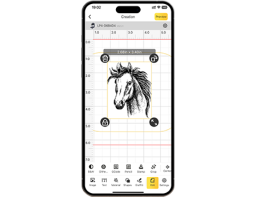


















You’ve just got yourself a new iPad – sleek, stylish, and powerful. But what if you could make it truly personal? That's where iPad laser engraving comes in. With a precise laser engraver, you can engrave your name, a logo, artwork, or even a meaningful quote directly onto the iPad's aluminum casing.
Unlike stickers or cases that wear out, laser engraving creates a permanent, professional mark that makes your device unique. Whether you want to personalize it for yourself, create a thoughtful gift, or add branding for business purposes – laser engraving is the perfect way to upgrade your iPad after purchase.

In This Article:
- Part 1: Overview of iPad Laser Engraving
- 1.1 What is iPad Laser Engraving?
- 1.2 How Does Laser Engraving Work on an iPad?
- 1.3 What Engraving Machine Do You Need for an iPad?
- Part 2: Why Use a Laser for Engraving on iPads?
- Case Study: How to Get an Engraved Apple iPad in 5 Steps💡
- Part 4: Safety & Tips for Engraving on iPad
Part 1: Overview of iPad Laser Engraving
1.1 What is iPad Laser Engraving?
iPad laser engraving is the process of using a precise laser beam to engrave custom designs, logos, names, or patterns onto the aluminum surface of the iPad (Apple also offers this service when purchasing a new device). Unlike stickers or printed decals, which can peel off or fade over time, laser engraving creates a permanent mark with a professional finish. It is often used for personalization, gifts, and branding, as it transforms a standard iPad into a unique and individual device.

1.2 How Does Laser Engraving Work on an iPad?
Laser engraving works by directing a powerful laser beam onto the metal casing of the iPad. The laser removes a thin layer of the anodized aluminum without damaging the device itself. Since the process is non-contact, no physical pressure is applied and no scratches are created – the precision comes entirely from the controlled laser energy. This allows for the engraving of fine details, from small text to complex graphics, ensuring a clean and durable result.
1.3 What Engraving Machine Do You Need for an iPad?
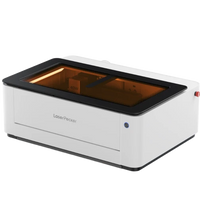
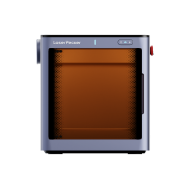
To engrave an iPad, you need a desktop laser engraver capable of marking metal surfaces – specifically anodized aluminum. Machines with fiber laser or dual-laser technology (fiber + diode) are most effective, as they can engrave metal with high precision. A good iPad engraver should offer the following features:
- High accuracy for detailed text and graphics.
- Non-contact engraving to prevent scratches or dents.
- User-friendly software for uploading and customizing designs.
- Safety features to protect the user and device.
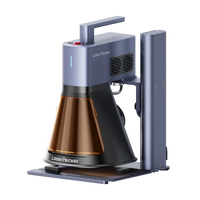
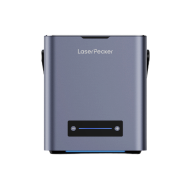
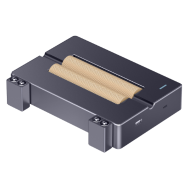
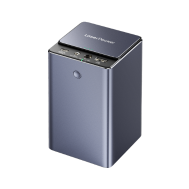
For home or small iPad laser engraving projects, diode laser engravers such as LP5, LP4 or even LP3 are a good choice. These iPad laser engravers are user-friendly and cost-effective.

Part 2: Why Use a Laser for Engraving on iPads?
Laser engraving is the best method to personalize an iPad because it combines precision, durability, and design freedom in a way no other technique can. Here's why it stands out:
① Durable and Professional Finish
Unlike stickers, paints, or decals that can fade, peel, or scratch, laser engraving creates a permanent mark directly on the iPad's aluminum surface. The result looks elegant, professional, and is resistant to everyday wear and tear.
② High Precision for Every Design
Lasers can accurately reproduce even the smallest details – such as fine text, complex logos, or patterns – without losing sharpness. This is ideal for personal engravings (like names or quotes) as well as for professional branding.
③ Non-Contact and Safe for the Device
Since the engraving is done with a controlled laser beam, no physical pressure is applied and there is no risk of scratching the iPad. The process is precise enough to engrave only the outer layer of the anodized aluminum, while the device remains fully functional.
④ Fast and Customizable
With the right machine, engraving an iPad takes only a few minutes. You can easily upload your own graphics, text, or designs to the software, adjust the size and position, and let the laser do the rest.
Case Study: How to Get an Engraved Apple iPad in 5 Steps💡
Checklist for Preparing iPad Laser Engraving:
- Engraving Material: iPad
- Engraving Machine: Diode Laser Engraver
- Engraving Design: Name, logo, images, patterns, etc.
Can you engrave an iPad? Yes! The process is simple. So, How long does it take to engrave an iPad? Don't worry – just follow these 5 steps to get your laser-engraved iPad in just a few hours!
Step 1: Prepare the Design
Start with the artwork, logo, or text you want to engrave. Use vector files (e.g., SVG or AI) for the cleanest results, though most engraving software also supports images and text. Fine lines and high-contrast designs work best on anodized aluminum.
Step 2: Choose the Right Laser Engraving Machine for iPad
We recommend LaserPecker 4 (LP4), equipped with a 10W 450nm diode laser, a 2W 1064nm IR laser, and a speed of up to 4,000 mm/s – ideal for iPad engravings.
Step 3: Position and Secure the iPad
Place the iPad in the engraving machine, making sure it is correctly aligned. Use protective tape or fixtures if necessary to prevent slipping. Check the orientation so the design appears exactly where you want it.
Step 4: Set up the Laser Engraving Machine for iPad
Use the LaserPecker graphic design app/software or third-party tools like Photoshop to create or import the shape or design. Pay attention to size, shape, and other details.
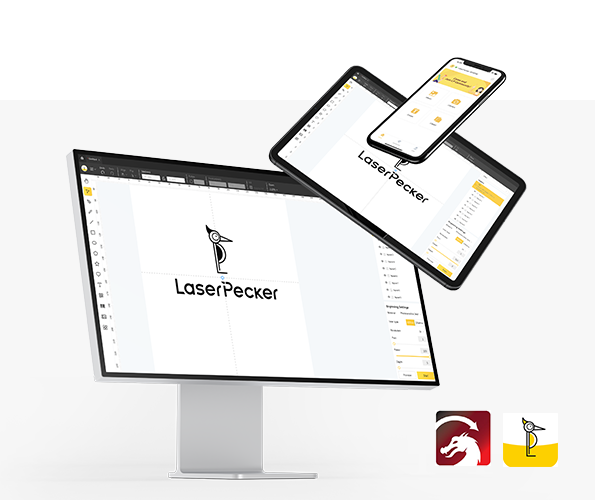
*Also visit LaserPecker CraftZone for inspiration or to purchase files online.
Now it's time to adjust the parameters of the laser engraving machine.
First: ensure the engraver is powered on and connect it to your computer or mobile device via the appropriate interface (WiFi, USB, Bluetooth, etc.).
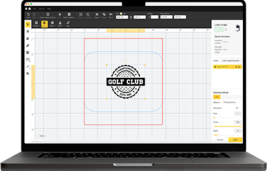
Second: open the LaserPecker Design Space and upload your design (formats such as JPG/PNG/G-Code/SVG etc. are supported).
Third: place the items in the workspace, activate preview mode, and check that the laser is correctly focused.
Fourth: check that your design sits correctly on the iPad surface. Adjust size and position if necessary.

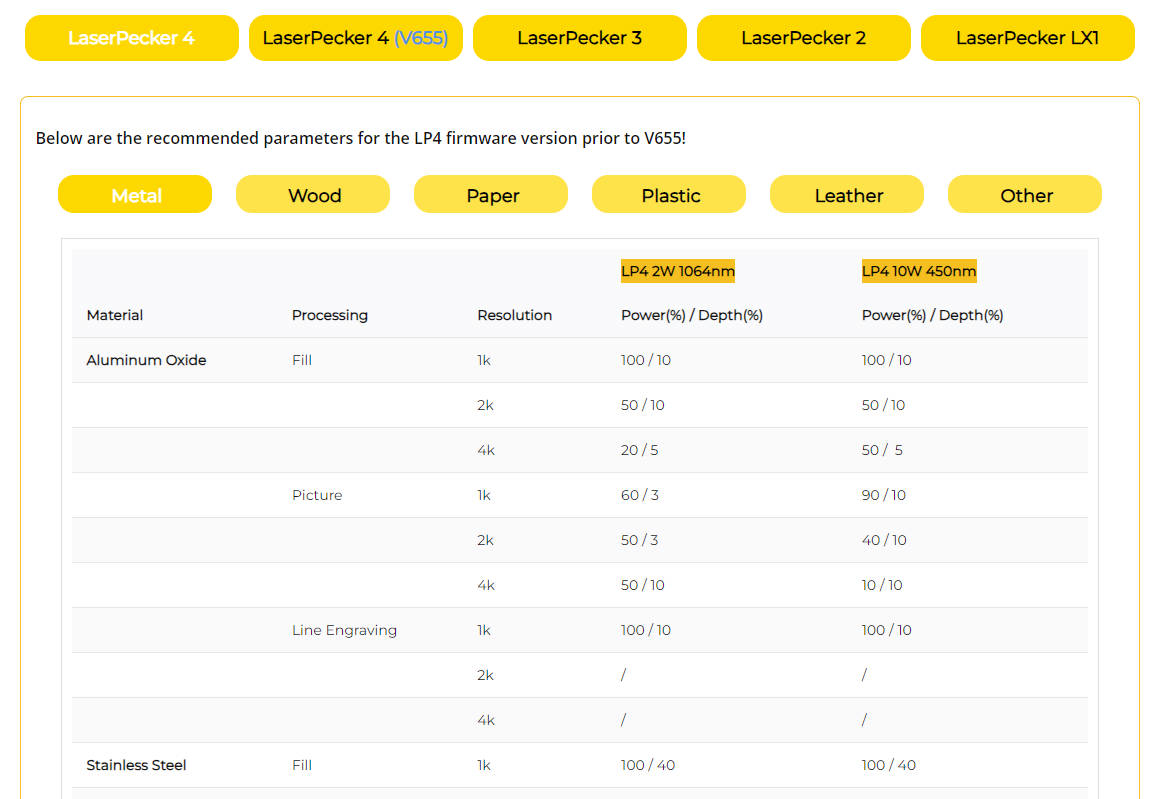
Finally: access the laser parameters in the software to adjust power, speed, and resolution according to the iPad's properties and design complexity. You might ask yourself: "What laser power is needed for iPad engraving?" Don't worry, we've got that covered!
For optimal results, the following LaserPecker LP5 material settings are recommended: 2 W 1064 nm IR laser; Resolution: 2k; Power: 70%; Depth: 5%; Passes: 1.
When operating a laser, it is advisable to wear safety goggles or use a laser safety cover, as the blue laser can pose risks.
Also, note that smoke or toxic fumes may be produced. Wearing a mask or using an air purifier is important for safety.
Further recommended LaserPecker settings for engraving and cutting can be found in the overview for all LaserPecker machines, including LP1, LP2, LP3, LP4, and LP5.
Step 5: Start the iPad Laser Engraving
Carefully check everything to avoid errors. Then press the start button and watch your design come to life. Keep an eye on the process and everything is ready!
After engraving, gently clean the surface with a soft cloth to remove any residue. Check that all details are sharp and even. Your iPad is now permanently personalized with an elegant, professional engraving.

Part 4: Safety & Tips for iPad Engraving
Laser engraving is safe if done correctly. However, since you are working with high-power equipment and an electronic device, some precautions are important. Here are the most important safety and practical tips:
1. Protect Your iPad
- Only engrave the metal casing – never the screen or camera area.
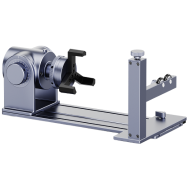
- Use positioning jigs or clamps to keep the iPad stable and prevent misalignment.
- Check the design preview before engraving to avoid errors.
2. Use Correct Machine Settings
- Select presets for anodized aluminum or test on scrap material first.
- Avoid excessive power, as this can damage the coating or leave uneven marks.
3. Practical Tips for Best Results
- Choose high-contrast designs for the cleanest appearance.
- Keep the design within the safe engraving areas (not over the Apple logo, buttons, or ports).
- For business applications or serial projects, use alignment tools for repeatable results.
Conclusion
iPad laser engraving goes beyond mere personalization – it makes your device stylish and unique. From detailed logos to creative designs, a laser engraver can transform a simple iPad into a personal and durable device.
By following the correct steps, using the appropriate machine, and observing safety precautions, you can engrave your iPad with confidence. Whether for work, study, or entertainment – engraving makes your iPad unique from day one.